What a proxy does
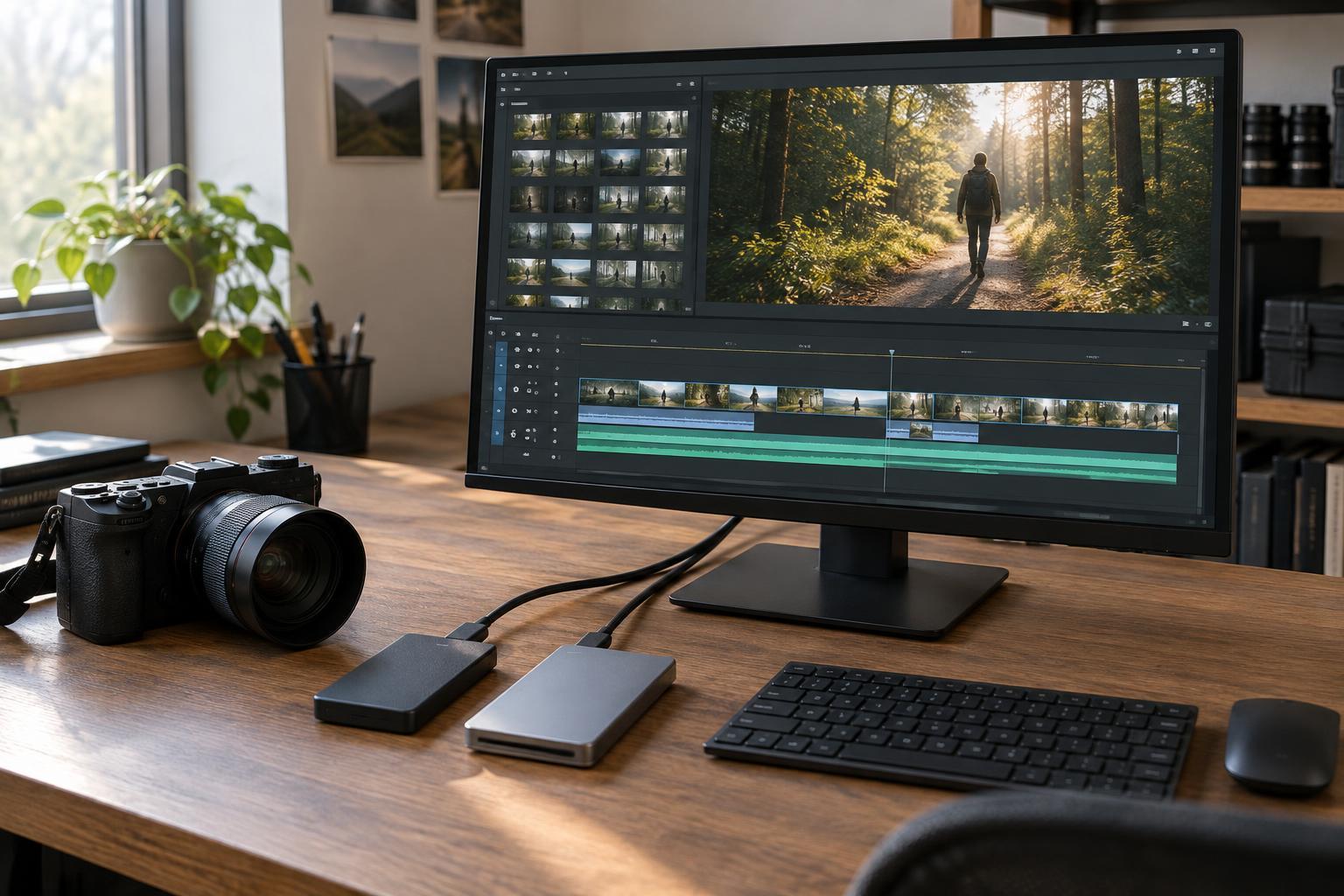
A proxy is a lighter copy of a video file used while editing. It might have a lower resolution, a codec that is easier for a computer to play, or both. The edit still refers to the same moments in the footage: a cut made at a particular frame should point to that frame in the camera original when you switch back. In a typical workflow, proxies make playback and scrubbing easier while the originals remain available for finishing and export.
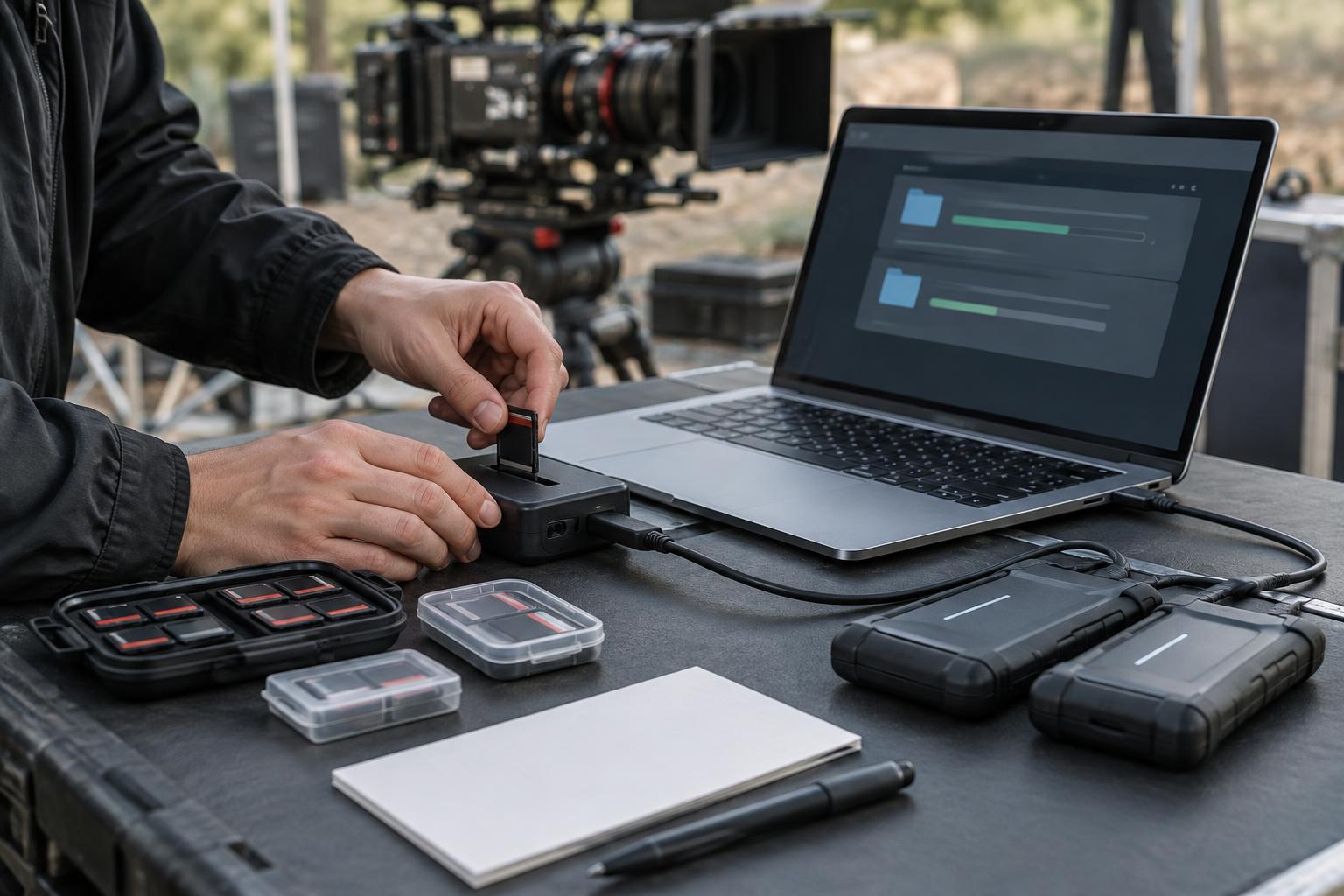
Proxies are not a substitute for keeping the source files safe. Store camera originals in an organized location, keep a separate backup when possible, and treat proxy files as replaceable working media. Whether the editor calls the process attaching, linking, switching, or reconnecting, the goal is the same: preserve the relationship between each lightweight file and its original.
When proxies are worth the setup
Consider proxies when footage stutters during ordinary playback, multicamera angles will not run smoothly, or the editor struggles to respond to simple trims. High-resolution footage, heavily compressed camera codecs, and projects with many simultaneous streams can all make editing more demanding. Proxies can also help when collaborators need manageable copies of footage rather than access to every full-size original.
They are not mandatory for every project. If the originals play smoothly and the project is simple, generating another set of files may add more organization than value. First check that playback trouble is not caused by a nearly full drive, missing media, or effects applied to the timeline. Proxies can improve the experience of cutting footage, but they will not necessarily solve delays caused by demanding effects or an underperforming storage setup.
Build a reliable match before you cut
Choose your editing application’s built-in proxy workflow when it meets your needs. It generally offers the clearest way to attach proxies to their originals and switch between them. Before generating files, confirm that the application will preserve the frame rate, clip duration, timecode, and audio layout needed to match each source. A proxy may use a smaller image, but it should not change where an edit lands in time.
Keep camera originals intact, and give proxy files a consistent home. Avoid casually renaming source files after the proxies have been attached; some applications rely on filenames or paths when reconnecting media. If two cards contain files with identical names, preserve their separate folder structure or use your editor’s supported method for assigning unique identities. Make a short test edit, switch from proxy to original, and check a few cuts before processing an entire shoot.
Pay extra attention to phone footage, screen recordings, or other clips that may use variable frame rates. If they cause drift or mismatched cuts, converting them to stable editing files before creating proxies may be more dependable than trying to repair a broken link later. Keep a record of any conversion so you know which files the project treats as its originals.
Reconnect originals without losing the edit
When it is time to finish, make sure the original drive is connected and the source folders have not moved unexpectedly. In the editor, switch proxy playback off or use its reconnect or relink command if the originals show as offline. Point the application to the correct original file or folder, then let it match the remaining clips. If it cannot do so automatically, compare filenames, durations, frame rates, and timecode rather than selecting a file merely because its thumbnail looks similar.
Relinking should change which media supplies the picture, not the editorial decisions in the timeline. Inspect cuts near the beginning and end of clips, synced dialogue, and any shots that were speed-adjusted or reframed. Wrong matches can be subtle, especially when several takes have similar content. If a clip does not line up, stop and resolve its identity before continuing with color work or export.
Finish with a source-media check
Before the final export, confirm that the timeline is using originals rather than proxies, unless a proxy-based delivery is intentional. View the sequence at a useful size and check graphics, crops, stabilization, and color adjustments: a low-resolution preview can hide problems that become obvious with full-quality media. Export a short test containing a few representative shots and listen to its audio before committing to a longer render.
Keep the project file, media organization, and any necessary notes together after delivery. You may need to reopen the edit to make a small change, and a clear path back to the originals is more valuable than a proxy folder whose contents are difficult to identify. A good proxy workflow makes cutting feel lighter without making the final handoff a guessing game.