What dual-system sound changes
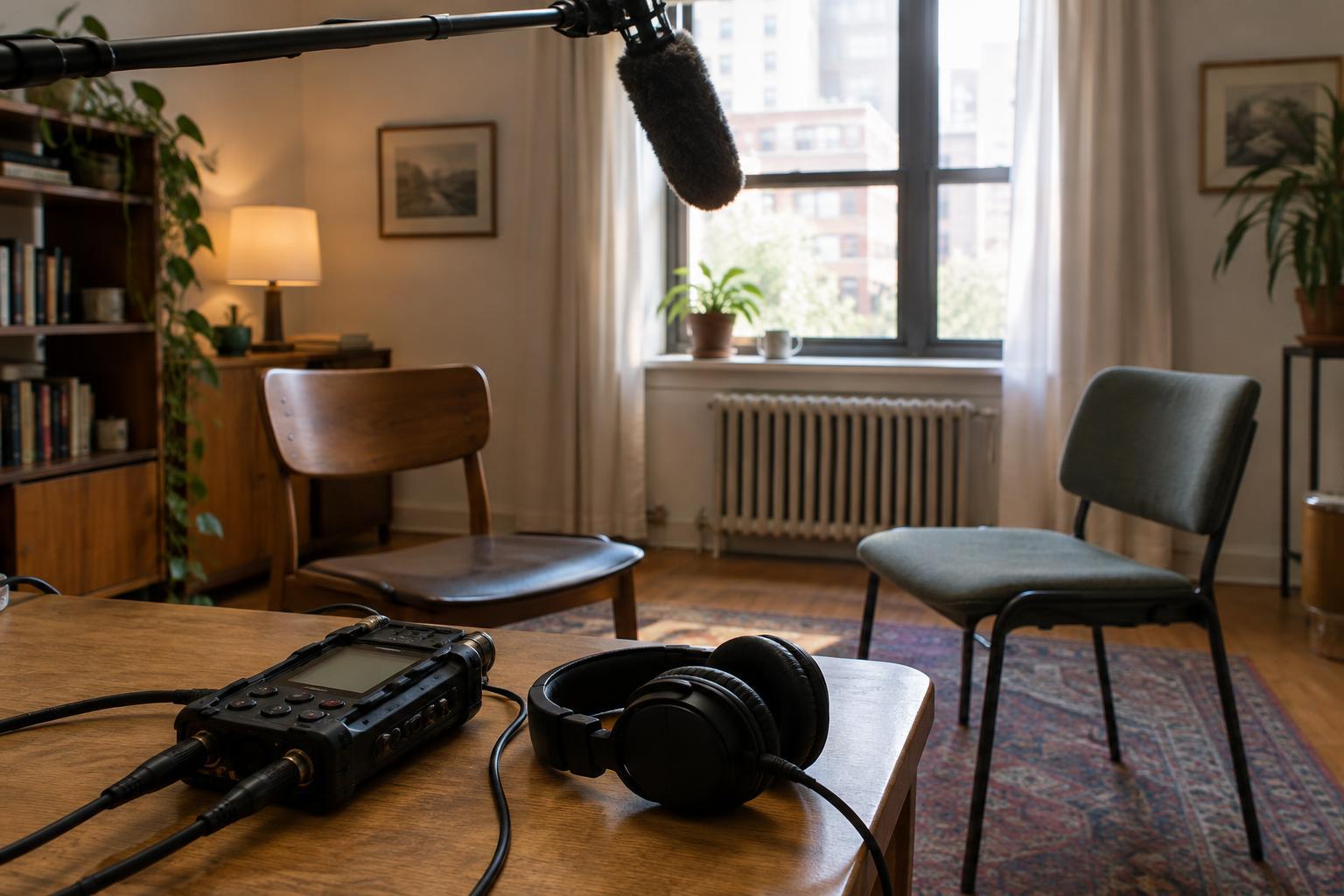
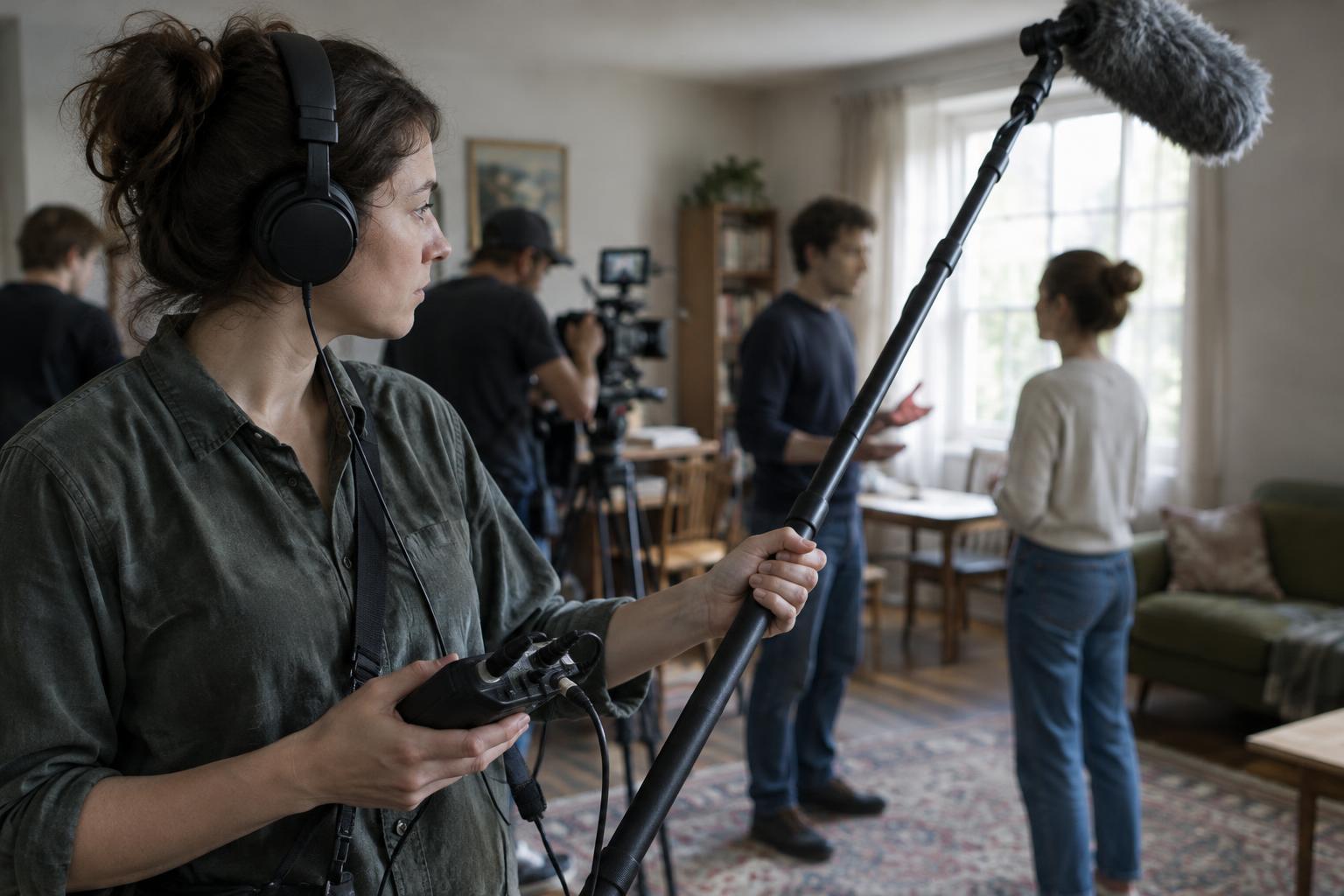
Dual-system sound means recording picture on a camera and production audio on a separate recorder. The sound recordist can place microphones, monitor levels and capture tracks without relying on the camera’s audio inputs. The trade-off is that the editor must connect two sets of files before the scene can be cut comfortably.
Sync is not simply putting a sound clip beneath a video clip. The files must represent the same take, and the sound must land at the right moment. A voice that arrives even slightly late can make a performance feel disconnected; a door slam or hand clap makes a mismatch especially easy to notice. A dependable workflow therefore starts on set, continues during file organization and ends with a visual and audible check in the edit.
Give every take a clear point of reference
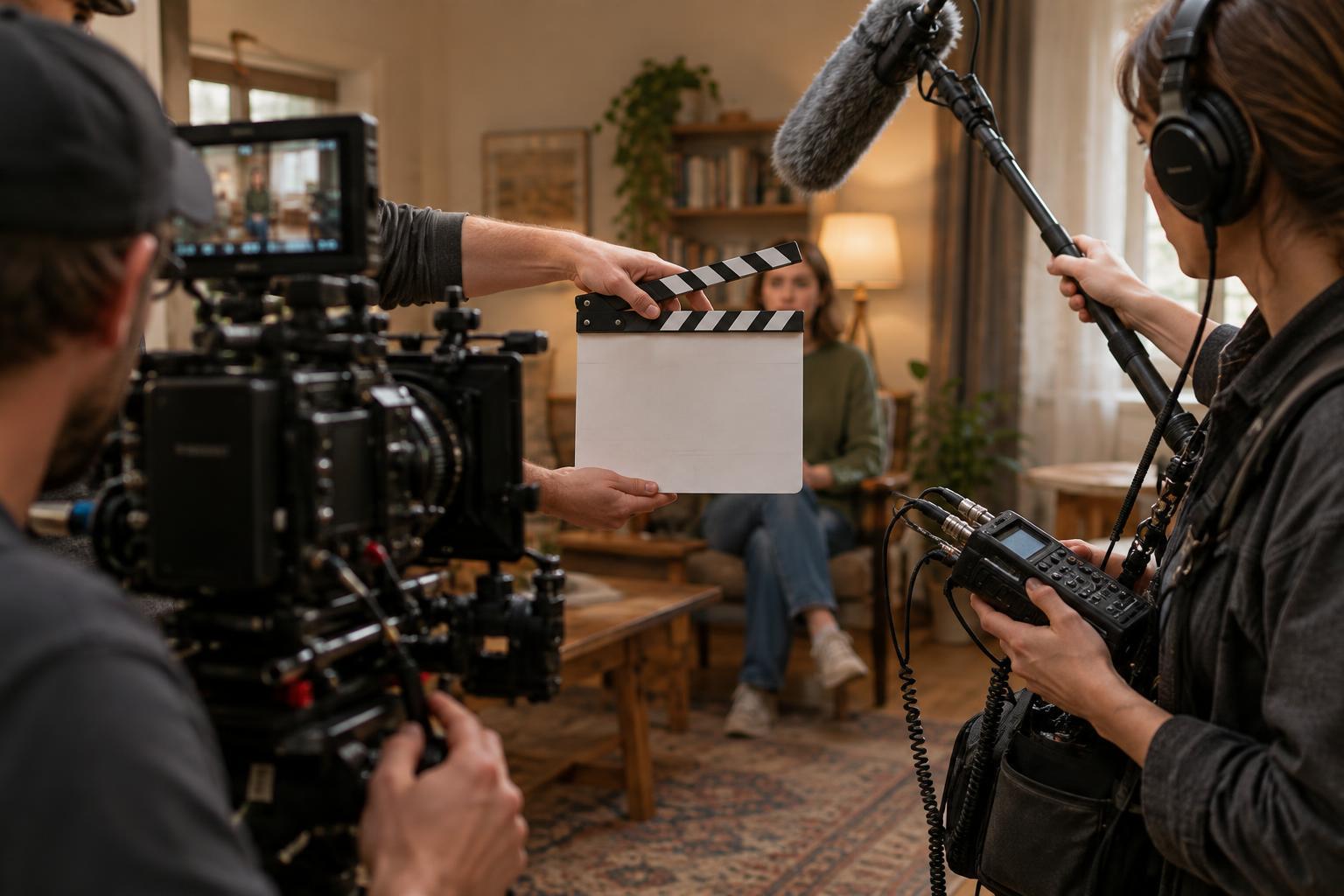
A slate provides a shared event for the camera and recorder: the instant its sticks close is visible in the picture and audible as a sharp transient. At the start of a take, record the slate information, show the open sticks clearly and close them where the camera can see them and the microphones can hear them. If a head slate is impractical, a tail slate can serve the same purpose; note that it belongs at the end so an editor does not mistake it for the next take.
Keep a camera microphone or other scratch-audio feed running when possible. It need not sound polished. Its job is to provide a recognizable version of the performance that can be compared with the recorder’s files. A clap, first spoken line or distinctive background sound may become the sync point if the slate is obscured.
Consistent naming matters as much as the clap. Match the scene and take identifiers across camera notes and recorder files, and record which takes were interrupted or restarted. A few clear notes are easier to use than a folder full of clips whose relationships must be guessed.
Choose a sync method in the edit
Before syncing, copy the original camera and recorder files into an organized project and retain untouched backups. Confirm that the intended camera clip and audio files belong to the same take. If several microphones were recorded as separate tracks, keep their relationship intact rather than syncing each by eye and risking different offsets.
For manual sync, enlarge the video and audio views around the slate. Place the audio spike from the stick closure at the frame where the sticks meet, then listen and watch a little farther into the take. Camera audio can help: line up the waveform of the clean recording with the matching peaks in the scratch track, then mute or disable the scratch track for editing. Waveforms narrow the search, but your eyes and ears should confirm the result.
Many editing applications can synchronize clips automatically by comparing their audio waveforms. This works best when both devices captured a clear version of the same event; noise, distant microphones or missing camera audio may defeat it. Timecode offers another route when the camera and recorder have been set up to share a reliable time reference. Matching timecode numbers alone is not proof of sync if the devices were configured differently or never properly aligned.
Check for drift, not just a good start
A clap that matches at the beginning does not guarantee that a long take stays in sync. After aligning the start, inspect a clear sound-and-picture event near the end, such as a hand movement, a hard consonant or another slate. If the offset grows gradually, look for a mismatch in recording or project settings, or for devices whose clocks ran at slightly different speeds. Check the video frame rate and the audio sample rate rather than changing settings at random.
A constant offset throughout the take is usually a placement problem: move the audio without changing its duration. Growing drift is different. Recheck how the media was imported and interpreted before applying any correction. If correction is necessary, use an appropriate audio-conform or time-stretch method sparingly and listen for artifacts. For future shoots, compatible timecode equipment or a shared clocking workflow can reduce problems, but neither replaces a check of the recorded take.
Make the synced take easy to edit
Once a take is verified, create a synchronized clip or linked picture-and-sound pair using the tools in your editor. Preserve the original multitrack audio when it is useful: a boom and a lavalier may need different treatment later. Label the result so the next person can tell which sound belongs to which picture, and avoid deleting source files simply because a synced version now exists.
Finally, spot-check dialogue at the beginning, middle and end of several takes, especially after any relinking, proxy creation or timeline change. The aim is not merely to make the slate line up. It is to give the edit a stable, trustworthy connection between performance and sound, so attention can return to rhythm, clarity and story.